Cell Phones
Cell Phones
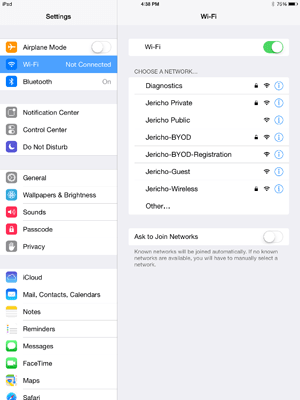
- Connect to the Jericho-BYOD wireless network.
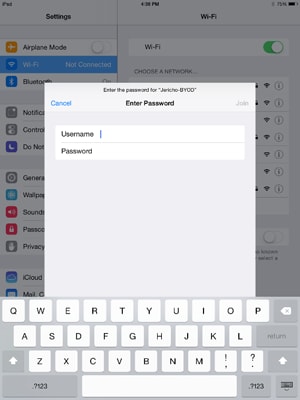
- Enter your network credentials (computer login).
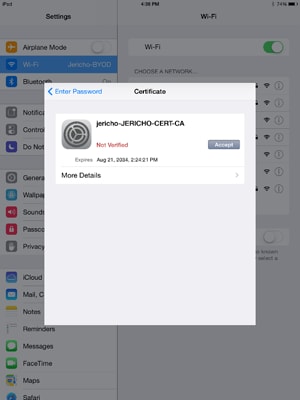
- After successfully authenticating, a certificate and profile must be installed. Please press Accept and Install Now.
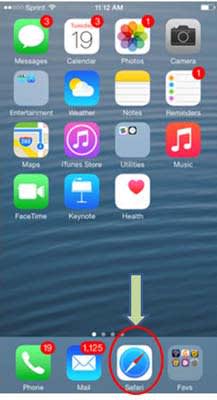
- Go to the Internet via Safari (It doesn't like Google Chrome to register).
- Go to Jericho Schools page.

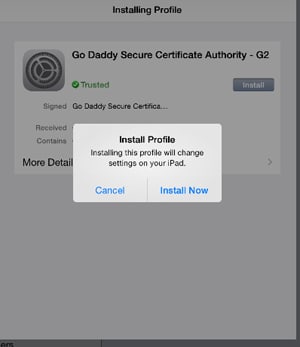
- Install Go Daddy Certificate. Press Done.
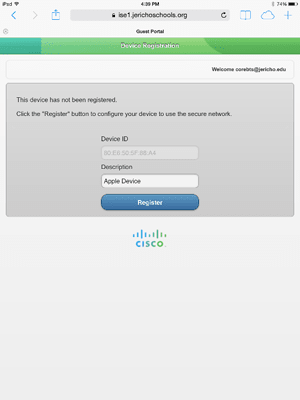
- Give the device a unique description and click Register.
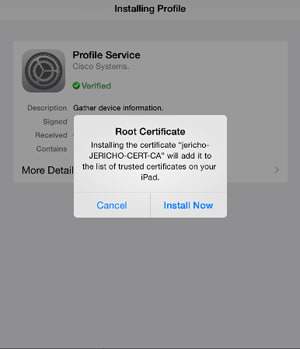
- Press Install.
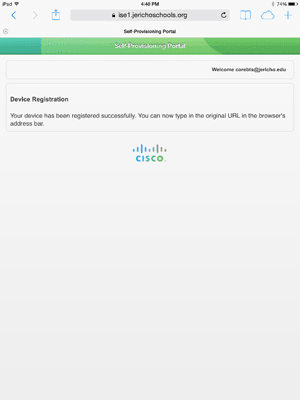
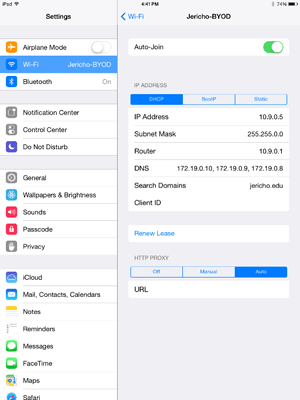
- The device will be redirected to the web. When the below page is reached, the device can now browse the internet*.
*Note: If you have trouble connecting, please ensure the proxy settings OFF.
Connect to the Jericho-BYOD network, put in your username for identity, and put password in (leave other setting as is).
You do not have to put in any payment plan. Press skip.
After successful authentication, please give a brief description of the device and click Register.
During the registration process you must install Network Setup Assistant.
Once Network Setup Assistant is installed, press Start.
After Network Setup Assistant completes the configuration, you will need to configure a screen lock if you do not have one already. After this step, the device will now successfully connect to Jericho-BYOD.
If you prefer not to set a screen pin lock, then follow instructions for the Windows phone.
Windows Phones
This network is for personal Macbooks, Chromebooks, and Windows phones only. These devices will not work on the Jericho-BYOD network.
- Connect to the Jericho-BYOD-Macbook network.
- Enter credentials. After successfully authenticating with valid login/password, the device can now browse the internet.
-
- Connect to the Jericho-BYOD wireless network.
- Enter your network credentials (computer login).
- After successfully authenticating, a certificate and profile must be installed. Please press Accept and Install Now.
- Go to the Internet via Safari (It doesn't like Google Chrome to register).
- Go to Jericho Schools page.
- Install Go Daddy Certificate. Press Done.
- Give the device a unique description and click Register.
- Press Install.
- The device will be redirected to the web. When the below page is reached, the device can now browse the internet*.
*Note: If you have trouble connecting, please ensure the proxy settings OFF.
- Connect to the Jericho-BYOD wireless network.
-
Connect to the Jericho-BYOD network, put in your username for identity, and put password in (leave other setting as is).
You do not have to put in any payment plan. Press skip.
After successful authentication, please give a brief description of the device and click Register.
During the registration process you must install Network Setup Assistant.
Once Network Setup Assistant is installed, press Start.
After Network Setup Assistant completes the configuration, you will need to configure a screen lock if you do not have one already. After this step, the device will now successfully connect to Jericho-BYOD.
If you prefer not to set a screen pin lock, then follow instructions for the Windows phone.
-
Windows Phones
This network is for personal Macbooks, Chromebooks, and Windows phones only. These devices will not work on the Jericho-BYOD network.
- Connect to the Jericho-BYOD-Macbook network.
- Enter credentials. After successfully authenticating with valid login/password, the device can now browse the internet.